🧩 Widgets
Every field on the edit page is edited with a widget. Content Studio picks the widget from the field's type, so most models need no configuration.
Default widgets
| Field type | Widget |
|---|---|
CharField and number fields | InputWidget |
EmailField | EmailWidget |
URLField | URLWidget |
SlugField | SlugWidget |
TextField | TextAreaWidget |
BooleanField | CheckboxWidget |
ForeignKey, OneToOneField | ForeignKeyWidget |
ManyToManyField | ManyToManyWidget |
DateField, DateTimeField, TimeField | DateWidget, DateTimeWidget, TimeWidget |
DurationField | DurationWidget |
FileField, ImageField | FileWidget |
JSONField | JSONWidget |
HTMLField (built-in) | RichTextWidget |
TagField (built-in) | TagWidget |
FlexField (built-in) | JSONSchemaWidget |
BlockField (built-in) | BlockWidget |
MultipleChoiceField (built-in) | MultiSelectWidget |
URLPathField (built-in) | URLPathWidget |
ColorField (built-in) | ColorPickerWidget |
MediaField, ManyMediaField (built-in) | MediaWidget, ManyMediaWidget |
AutoSlugField (django-extensions) | SlugWidget |
Fields with choices get a select. Fields of other types get a plain input.
These widgets are not used by default but are there to choose:
SwitchWidget: a toggle switch, for aBooleanField.PhoneWidget: a phone number, for aCharField. Phones show the number pad.PasswordWidget: a masked value with a button that shows it, for a secret such as an API key in aCharField. See Secrets.SliderWidget: a number picked on a slider, for a number field. It needs its range: see Widget options.ToggleGroupWidget: a row of buttons for a field with choices, of which exactly one is active.RadioButtonWidget: the choices of a field as radio buttons, one per line. An optional field can be cleared.CoverImageWidget: one image shown large, for aMediaFieldthat holds a cover or header image. See Cover images.MarkdownWidget: Markdown typed as text, for aTextFieldthat stores Markdown. A toolbar adds headings, bold, italic, links and lists (also with Ctrl or ⌘ + B, I and K), and the Preview tab shows the text rendered. Raw HTML is not rendered.CodeWidget: a code editor with line numbers, for embed codes and snippets in aTextField. Pass alanguagefor syntax highlighting. Tab indents; press Escape, then Tab, to leave the editor.IconPickerWidget: a Phosphor icon picked from a searchable grid, for aCharField. It saves the icon's class, such as"ph-bold ph-star", which you use as<i class="ph-bold ph-star"></i>on your site with the Phosphor Bold font.KeyValueWidget: aJSONFielddict of strings, edited as rows of a key and a value. A key that is empty or used twice keeps the form from saving. JSON objects have no order (PostgreSQL sorts their keys), so the rows cannot be reordered.ListWidget: aJSONFieldlist of strings, edited as rows that can be added, removed and dragged into order. Enter adds a row. UnlikeTagWidget, the order is kept and the same value can appear twice.RatingWidget: stars for a small integer, such as a review score. Clicking the current star again clears an optional field.MapWidget: a location picked on a map, for aJSONFieldor a pair of number fields. See Maps.EmbedWidget: the URL of a video, song or post on YouTube, Vimeo, Spotify and other sites, with a preview. See Embeds.
The JSONWidget, the default for a JSONField, is a JSON editor. JSON
that does not parse is underlined and keeps the form from saving.
The code editor of CodeWidget and JSONWidget is loaded only on pages
that have one of them.
Use another widget for one field
Pass a widget class to a Field in edit_main or edit_sidebar:
# blog/admin.py
from content_studio import register, widgets
from content_studio.admin import ModelStudio
from content_studio.form import Field, FormSet

from .models import Article


@register(Article)
class ArticleStudio(ModelStudio):
    edit_main = [
        FormSet(
            fields=[
                "title",
                Field("featured", widget=widgets.SwitchWidget),
            ],
        ),
    ]
The widget only changes how the field is edited. Read-only fields keep showing their value through its format.
Widget options
Some widgets take options. Pass an instance with the options instead of the class; a class is the same widget without options:
# blog/admin.py
import datetime

from content_studio import register, widgets
from content_studio.admin import ModelStudio
from content_studio.form import Field, FormSet

from .models import Article


@register(Article)
class ArticleStudio(ModelStudio):
    edit_main = [
        FormSet(
            fields=[
                Field(
                    "title",
                    widget=widgets.InputWidget(placeholder="A short, clear title"),
                ),
                Field("body", widget=widgets.TextAreaWidget(rows=12)),
                Field(
                    "published_at",
                    widget=widgets.DateTimeWidget(min_date=datetime.date.today),
                ),
            ],
        ),
    ]
Options are keyword arguments. An unknown option or an invalid value raises an error when the studio is defined, not when an editor opens the page.
InputWidget(placeholder=None, prefix=None, suffix=None, min_value=None, max_value=None, step=None, show_count=None, recommended_length=None):prefixandsuffixare shown inside the box, around the value, for a currency or a unit.min_value,max_valueorstepmake it a number input. Forshow_countandrecommended_length, see Character counter.TextAreaWidget(rows=None, placeholder=None, show_count=None, recommended_length=None): the textarea grows with its text;rowssets the height it starts at.EmailWidget(placeholder=None),URLWidget(placeholder=None)andPhoneWidget(placeholder=None): an email address gets a button that writes to it, and a web address one that opens it in a new tab.PasswordWidget(write_only=False, placeholder=None): see Secrets.SliderWidget(min_value, max_value, step=1, suffix=None): a slider frommin_valuetomax_value, with the value next to it.suffixis shown after the value, for a unit.min_valueandmax_valueare required.DurationWidget(show_days=False, show_seconds=True): boxes for hours, minutes and seconds.show_days=Trueadds a days box; without it, a day counts as 24 hours.show_seconds=Falseleaves out the seconds.RichTextWidget(features=None, heading_levels=None):featureslimits the editor to the listed formatting. Choose from"heading","blockquote","code_block","bold","italic","underline","strike","ordered_list","bullet_list"and"link". Formatting that is not listed has no button, and is removed from text that editors paste.heading_levelslimits the heading levels, such as[2, 3].DateWidget(min_date=None, max_date=None)andDateTimeWidget(min_date=None, max_date=None): limit the days the picker offers. Pass a date, or a callable that returns one, such asdatetime.date.today, for a limit that moves with time.CoverImageWidget(aspect_ratio=None, min_width=None, min_height=None): see Cover images.ColorPickerWidget(show_input=True, swatches=None): see Colors.MarkdownWidget(rows=None, placeholder=None, show_count=None, recommended_length=None): the options ofTextAreaWidget.rowssets the height (8 lines by default).CodeWidget(language=None): the language to highlight:"css","html","javascript"or"json". Without it, the code is plain text.RatingWidget(max_value=5): the number of stars, from 2 to 10.MapWidget(lng_field=None, center=None, zoom=None): see Maps.EmbedWidget(placeholder=None): see Embeds.
Options guide editors; they do not validate. To enforce a range or a
format, add validators
to the model field, such as MinValueValidator, and an HTMLField's
sanitizer for the HTML it keeps.
Character counter
A text field with a max_length shows a counter under its box once the
text reaches 80% of the limit, such as "52 / 60". It turns red past the
limit. show_count=True always shows the counter, and show_count=False
never does.
recommended_length is a soft limit, such as the length a search engine
shows of a title. The counter counts against it, starts at 80% of it, and
turns orange past it. The field still saves:
# blog/admin.py
Field("title", widget=widgets.InputWidget(recommended_length=60)),
Secrets
PasswordWidget masks its value. Editors can show it with the eye button.
With write_only=True, the saved value never leaves the server: the API
says whether a value is saved, and the box stays empty. Editors type a new
value to replace it, and an optional field has a Clear button that
removes it on save. CSV and Excel exports leave the field out.
# blog/admin.py
Field("api_key", widget=widgets.PasswordWidget(write_only=True)),
write_only applies to the field wherever the studio's form has it. The
value is stored as you store it: to encrypt it in the database, use an
encrypted model field.
Files
FileWidget edits a FileField or an ImageField. Editors pick a file or
drop it on the field; an ImageField only takes images and shows a preview.
The file is uploaded right away and attached when the editor saves. Until
then, the object keeps its saved file, so Cancel leaves it unchanged.
Uploads go through the same checks as the media library: the field's own
validators (an ImageField checks that the file is an image), a maximum
size (UPLOAD_MAX_SIZE), and no markup
such as HTML and SVG. A picked file waits in
UPLOAD_FOLDER in the default storage. It
is moved into the field's upload_to on save.
Files that were picked but never saved stay in the upload folder. Remove them once a day, for example with cron:
python manage.py content_studio_clear_uploads
It removes uploads older than a day; an editor's upload is valid for that long.
Maps
MapWidget picks a location on a map. Editors click the map to place the
pin, drag it, search for an address, or type the latitude and longitude in
the boxes under the map. The map is loaded only on pages that have a map
field.
The location is stored in one of two ways:
- In a
JSONField, as{"lat": 52.37, "lng": 4.89}. Give the fieldnull=Trueso an optional location can be cleared. - In two number fields (
FloatFieldorDecimalField): put the widget on the latitude field and name the longitude field withlng_field. The widget fills both. Leave the longitude field out of the form, or it shows as a plain number box too.
# blog/models.py
class Venue(models.Model):
    location = models.JSONField(null=True, blank=True)


class Shop(models.Model):
    latitude = models.FloatField(null=True, blank=True)
    longitude = models.FloatField(null=True, blank=True)


# blog/admin.py
Field("location", widget=widgets.MapWidget(center=(52.37, 4.89), zoom=10)),
Field("latitude", widget=widgets.MapWidget(lng_field="longitude")),
lng_field: the number field holding the longitude, when the widget is on a latitude field.centerandzoom: where the map starts while the field is empty, as a(latitude, longitude)pair and a zoom from 0 (the world) to 19 (a street). By default, the map shows the world.
The map shows OpenStreetMap tiles and
searches addresses with its Nominatim service, both from the editor's
browser; their usage policies allow this for an admin's occasional use.
To use your own tile server or geocoder, or to leave the search out, set
MAP_TILE_URL, MAP_TILE_ATTRIBUTION and
MAP_GEOCODER_URL. System check
content_studio.E035 reports a MapWidget on a field it cannot edit.
Embeds
EmbedWidget takes the URL of a video, song or post on a site that offers
oEmbed, such as YouTube, Vimeo, Spotify, SoundCloud,
TikTok, Flickr, Bluesky and X. The admin shows a preview with the title and
thumbnail, which the server fetches from the site; the value stays the URL
as typed, for your templates to embed. A URL on another site is saved too,
without a preview.
# blog/admin.py
Field("video_url", widget=widgets.EmbedWidget),
The sites are listed in
OEMBED_PROVIDERS, which you can
replace with your own, such as a self-hosted PeerTube. Previews are cached
for a day.
Cover images
CoverImageWidget shows the image of a MediaField across the width of the
form, in a 16:9 frame by default, the way a cover or header image appears on a site.
Use it for one field in edit_main:
# blog/models.py
from django.db import models

from content_studio.media_library.fields import MediaField


class Article(models.Model):
    title = models.CharField(max_length=200)
    cover = MediaField("blog.MediaItem")
# blog/admin.py
from content_studio import register, widgets
from content_studio.admin import ModelStudio
from content_studio.form import Field, FormSet

from .models import Article


@register(Article)
class ArticleStudio(ModelStudio):
    edit_main = [
        FormSet(
            fields=[
                Field("cover", widget=widgets.CoverImageWidget),
                "title",
            ],
        ),
    ]
Editors drop an image on the frame, upload one or choose one from the media library. Uploads are added to the top folder of the library, which needs the media model's add permission. Only images are accepted.
Once an image is chosen, the frame crops it to its shape around its focal point. Below the image, editors edit its alt text, and from the frame they set its focal point:
- Alt text is saved on the media item when the editor leaves the input.
It shows when the media item model has an
alt_textfield. - Focal point opens a dialog with previews of the image cropped to 21:9, 4:3 and 1:1. It shows when the media item model has a properties field.
Both belong to the media item, not to the article: a change applies wherever the image is used, and needs the media model's change permission.
To match how your site shows the image, pass options:
aspect_ratiosets the frame's shape, such as"21:9"for a banner or"1:1"for a square. It is"16:9"when unset.min_widthandmin_heightare the smallest size in pixels your templates need. Editors see a warning when the image is smaller, so a cover does not end up blurry. The image is still accepted. With media metadata, the stored size is used; without it, the editor's browser loads the full image to measure it.
# blog/admin.py
from content_studio import register, widgets
from content_studio.admin import ModelStudio
from content_studio.form import Field, FormSet

from .models import Article


@register(Article)
class ArticleStudio(ModelStudio):
    edit_main = [
        FormSet(
            fields=[
                Field(
                    "cover",
                    widget=widgets.CoverImageWidget(
                        aspect_ratio="21:9", min_width=2100, min_height=900
                    ),
                ),
                "title",
            ],
        ),
    ]
System check content_studio.W019 reports a CoverImageWidget on a field
that is not a MediaField to the media library model.
Colors
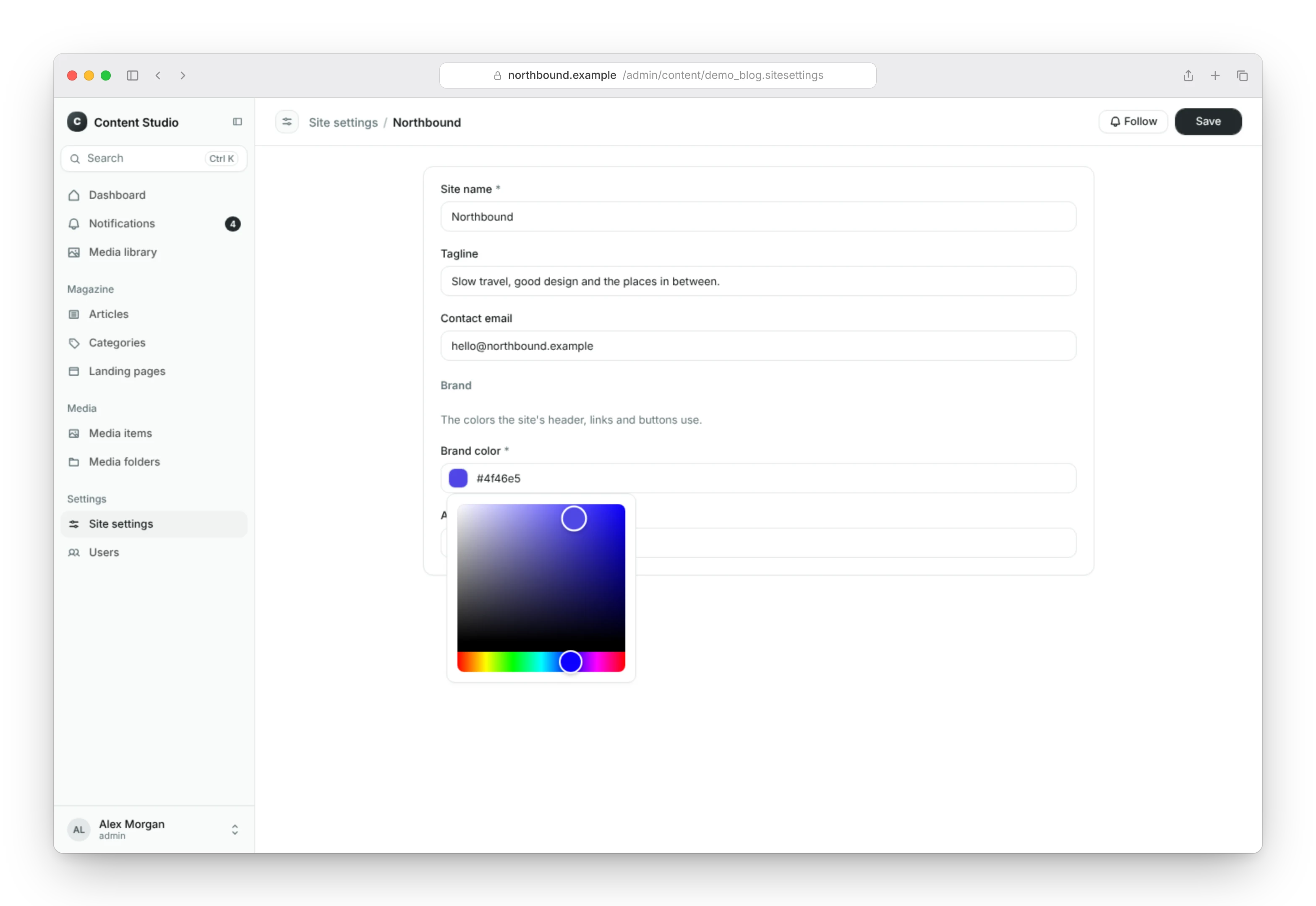
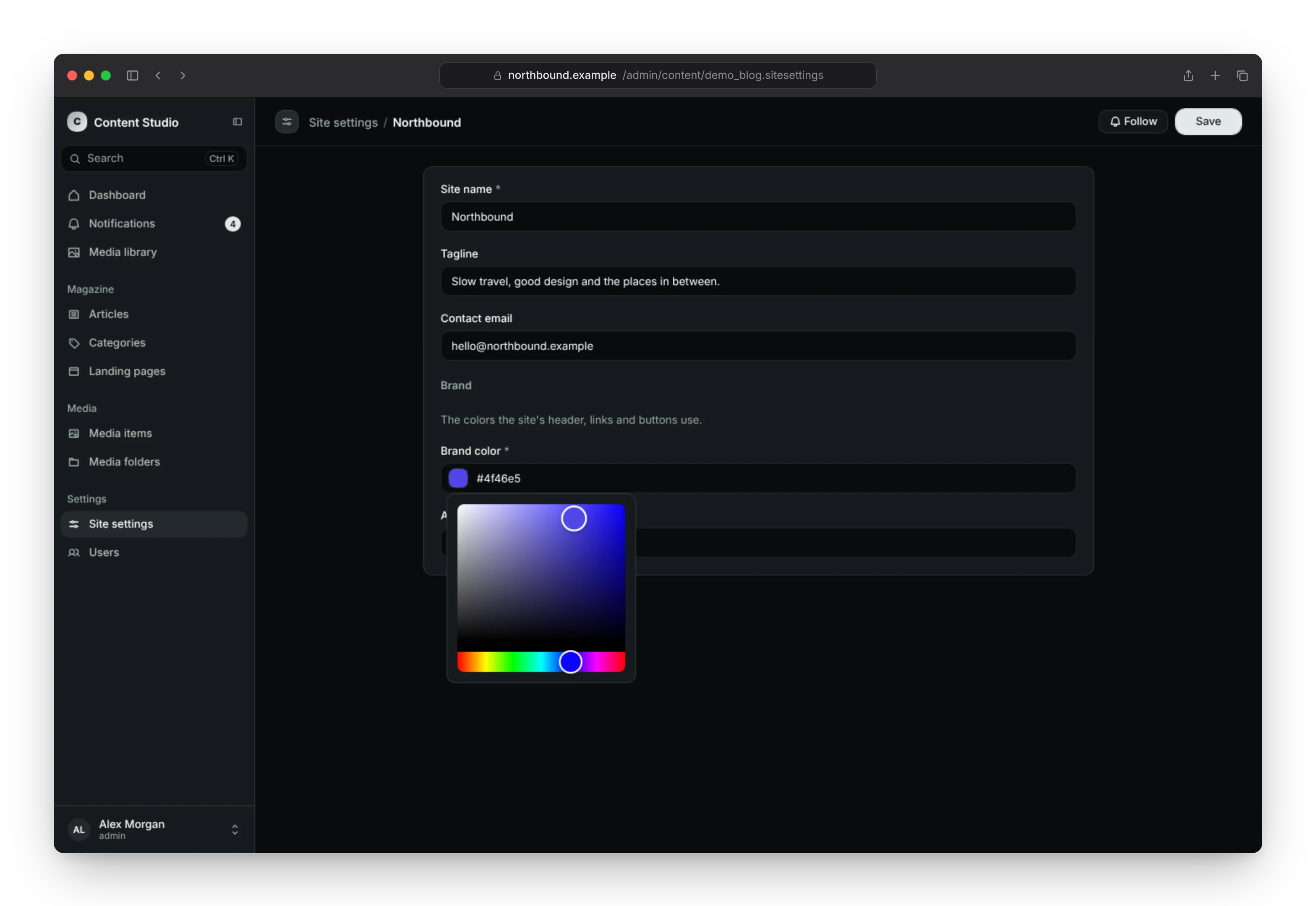
ColorField stores a CSS color, edited with a color picker. It is a
CharField that saves the color in one notation, chosen with
color_format: "hex" (the default), "rgb" or "hsl". Set alpha=True
to allow transparent colors.
# blog/models.py
from django.db import models

from content_studio.fields import ColorField


class Category(models.Model):
    name = models.CharField(max_length=100)
    color = ColorField(blank=True)
    overlay = ColorField(color_format="rgb", alpha=True, blank=True)
Editors can type or paste a color in any of the three notations, such as
#336699, rgb(51 102 153) or hsl(210, 50%, 40%). Anything else is
rejected. On save, the color is converted to the field's notation, so your
templates always get the same form:
color_format | Saved | With alpha=True |
|---|---|---|
"hex" | #336699 | #33669980 |
"rgb" | rgb(51, 102, 153) | rgba(51, 102, 153, 0.5) |
"hsl" | hsl(210, 50%, 40%) | hsla(210, 50%, 40%, 0.5) |
With alpha=True, every color is saved with its alpha, also an opaque
one. Without it, transparent colors are rejected.
ColorPickerWidget shows a swatch that opens the picker, next to a text
input for typing or pasting a color. Pass options to change it:
show_input:Falseleaves out the text input. Editors pick a color with the picker only.swatches: a list of colors offered below the picker, such as your brand palette. They can be in any notation and are converted to the field's.
# blog/admin.py
from content_studio import register, widgets
from content_studio.admin import ModelStudio
from content_studio.form import Field, FormSet

from .models import Category


@register(Category)
class CategoryStudio(ModelStudio):
    table_display = ["name", "color"]
    edit_main = [
        FormSet(
            fields=[
                "name",
                Field(
                    "color",
                    widget=widgets.ColorPickerWidget(
                        swatches=["#0f172a", "#2563eb", "#16a34a", "#dc2626"],
                    ),
                ),
                Field(
                    "overlay",
                    widget=widgets.ColorPickerWidget(show_input=False),
                ),
            ],
        ),
    ]
On the list page, a ColorField shows a swatch next to its value
(ColorFormat).
To keep a plain CharField, add a ColorValidator and choose the
widget. ColorValidator(color_format=None, alpha=False) accepts colors in
the given notation only, or in all three with None. A plain field does
not convert colors on save, so give the validator a color_format to
keep them in one notation. The picker writes the validator's notation, or
hex without one.
# blog/models.py
from django.db import models

from content_studio.validators import ColorValidator


class Tag(models.Model):
    name = models.CharField(max_length=50)
    color = models.CharField(
        max_length=7, blank=True, validators=[ColorValidator(color_format="hex")]
    )
# blog/admin.py
from content_studio import register, widgets
from content_studio.admin import ModelStudio
from content_studio.form import Field, FormSet

from .models import Tag


@register(Tag)
class TagStudio(ModelStudio):
    edit_main = [
        FormSet(fields=["name", Field("color", widget=widgets.ColorPickerWidget)]),
    ]
Change the default for a field type
To change the widget for every field of a type, extend the site's
default_widget_mapping:
# mysite/studio.py
from django.db import models

from content_studio import widgets
from content_studio.admin import ContentStudioSite


class BlogStudioSite(ContentStudioSite):
    default_widget_mapping = {
        **ContentStudioSite.default_widget_mapping,
        models.EmailField: widgets.InputWidget,
    }


admin_site = BlogStudioSite()
Formats
Values on the list page and in read-only fields are shown through formats. Content Studio picks the format from the field's type:
| Field type | Format | Shows |
|---|---|---|
CharField, SlugField | TextFormat | The text |
TextField | TextFormat(lines=2) | Two lines on the list page, all of it on hover and in a read-only field |
| Number fields | NumberFormat | Grouped digits in the editor's language (45,940) |
BooleanField | BooleanFormat | A check or a dash |
DateField | DateFormat | The date in the editor's language |
DateTimeField | DateTimeFormat | The time relative to now, exact on hover |
TimeField | TimeFormat | Hours and minutes |
DurationField | DurationFormat | The duration in words, such as 1h 20m |
UUIDField | CodeFormat | The value in a monospace font, with a copy button |
EmailField | EmailFormat | A mailto: link |
URLField | LinkFormat | A link that opens in a new tab |
FileField | FileFormat | The file's name, linked to the file |
ImageField | ImageFormat | A small thumbnail, linked to the image |
ForeignKey, OneToOneField | ForeignKeyFormat | The related object |
ManyToManyField | ManyToManyFormat | The related objects as chips |
JSONField, FlexField (built-in) | JSONFormat | The JSON |
HTMLField (built-in) | HtmlFormat | An excerpt on the list page, the formatted text in a read-only field |
TagField (built-in) | TagFormat | The tags as pills |
ColorField (built-in) | ColorFormat | A swatch with the value |
BlockField (built-in) | BlockFormat | The number of blocks |
MediaField, ManyMediaField (built-in) | MediaFormat, ManyMediaFormat | The thumbnails |
Fields with choices show the choice's label. Lists of tags, related objects and media show the first three, then "+2" for the rest.
These formats are not used by default but are there to choose:
CurrencyFormat: an amount in a currency, such as €1,250.00.PercentFormat: a percentage, such as 91%.BadgeFormat: a value as a colored badge, for a status.ProgressFormat: a number as a small meter, with the number next to it, for a score or a completion percentage.CodeFormat: for any identifier, such as a SKU or a key.FileSizeFormat: a number of bytes, such as 1.2 MB.
Use another format for a column
Pass a format to a TableColumn, as a class or as an instance with
options:
# blog/admin.py
from content_studio import register
from content_studio.admin import ModelStudio
from content_studio.form import TableColumn
from content_studio.formats import BadgeFormat, DateTimeFormat, NumberFormat

from .models import Article


@register(Article)
class ArticleStudio(ModelStudio):
    table_display = [
        "title",
        TableColumn(
            field="status",
            format=BadgeFormat(colors={"draft": "gray", "published": "green"}),
        ),
        TableColumn(field="published_at", format=DateTimeFormat(relative=False)),
        TableColumn(
            field="get_word_count", header="Words", format=NumberFormat(compact=True)
        ),
    ]

    def get_word_count(self, obj, request):
        return len(obj.body.split())
Format options
Options are keyword arguments, checked when the format is made: an unknown style or color raises an error when Django starts.
# blog/admin.py
TableColumn(field="body", format=TextFormat(max_length=80)),
NumberFormat:decimalsfixes the digits after the decimal point (up to two are shown without it).compact=Trueshortens large numbers (45.9K) and shows the exact value on hover.prefixandsuffixare shown next to the number in muted text, such assuffix="km".CurrencyFormat: the currency as an ISO 4217 code, such as"EUR"or"USD", anddecimalsandcompactas forNumberFormat. Withoutdecimals, the currency's own minor units are shown (cents for euros).PercentFormat: the value is the percentage, so 91 shows as 91%. Withfraction=Truethe value is a fraction of one, so 0.91 shows as 91%.decimalsas forNumberFormat; one decimal is shown without it.BadgeFormat:colorsmaps values to"gray","blue","green","yellow","red"or"purple"; values not in it getdefault_color("gray"). The colors are tuned for the light and dark theme. A field with choices shows the choice's label; aMultipleChoiceFieldshows a badge per value.DateFormat:styleis"short"(10/9/26),"medium"(Oct 9, 2026, the default) or"long"(October 9, 2026), in the editor's language.DateTimeFormat:relative=Falseshows the date and time instead of "3 hours ago";stylesets the date's style, as forDateFormat.TextFormat:max_lengthcuts the text at that many characters andlinesclamps it to that many lines. The full text shows on hover. A read-only field on the edit page always shows all of it.DurationFormat:styleis"narrow"(1h 20m, the default),"short"(1 hr, 20 min) or"long"(1 hour, 20 minutes), in the editor's language.ProgressFormat:max_valueis the value of a full meter (100). Values below 0 or above it show an empty or a full meter.BooleanFormat:labels=("In stock", "Sold out")shows the first word for true and the second, muted, for false. Addcolors=("green", "red")to show them as badges, in the colors ofBadgeFormat.
Change the default format for a field type
The site's default_format_mapping maps field types to formats, and you
change it the same way as default_widget_mapping. To show every
DecimalField as euros:
# mysite/studio.py
from django.db import models

from content_studio import formats
from content_studio.admin import ContentStudioSite


class BlogStudioSite(ContentStudioSite):
    default_format_mapping = {
        **ContentStudioSite.default_format_mapping,
        models.DecimalField: formats.CurrencyFormat("EUR"),
    }


admin_site = BlogStudioSite()
Custom widgets and formats
Only the built-in widgets and formats are supported. The admin has no way to show a widget or format class of your own.