📑 List page
Every registered model gets a list page, where editors search, filter, sort and act on its objects. You configure it on the model's studio, next to the options on Registering models.
The list page shows objects as a table, the default, or as a list of
readable items. Set the views to offer with list_views; with more than one,
editors switch with a toggle and the admin remembers their choice per model.
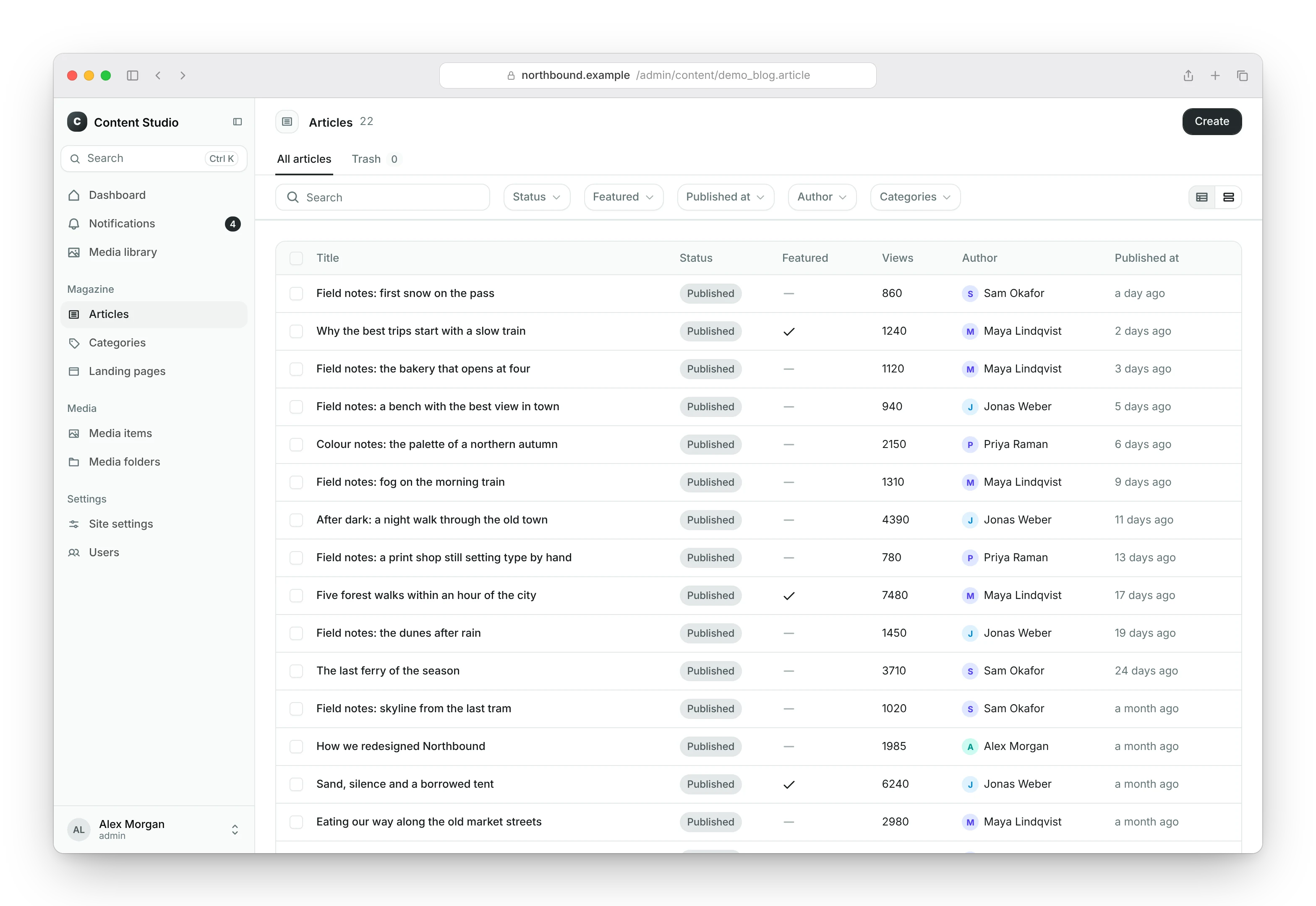
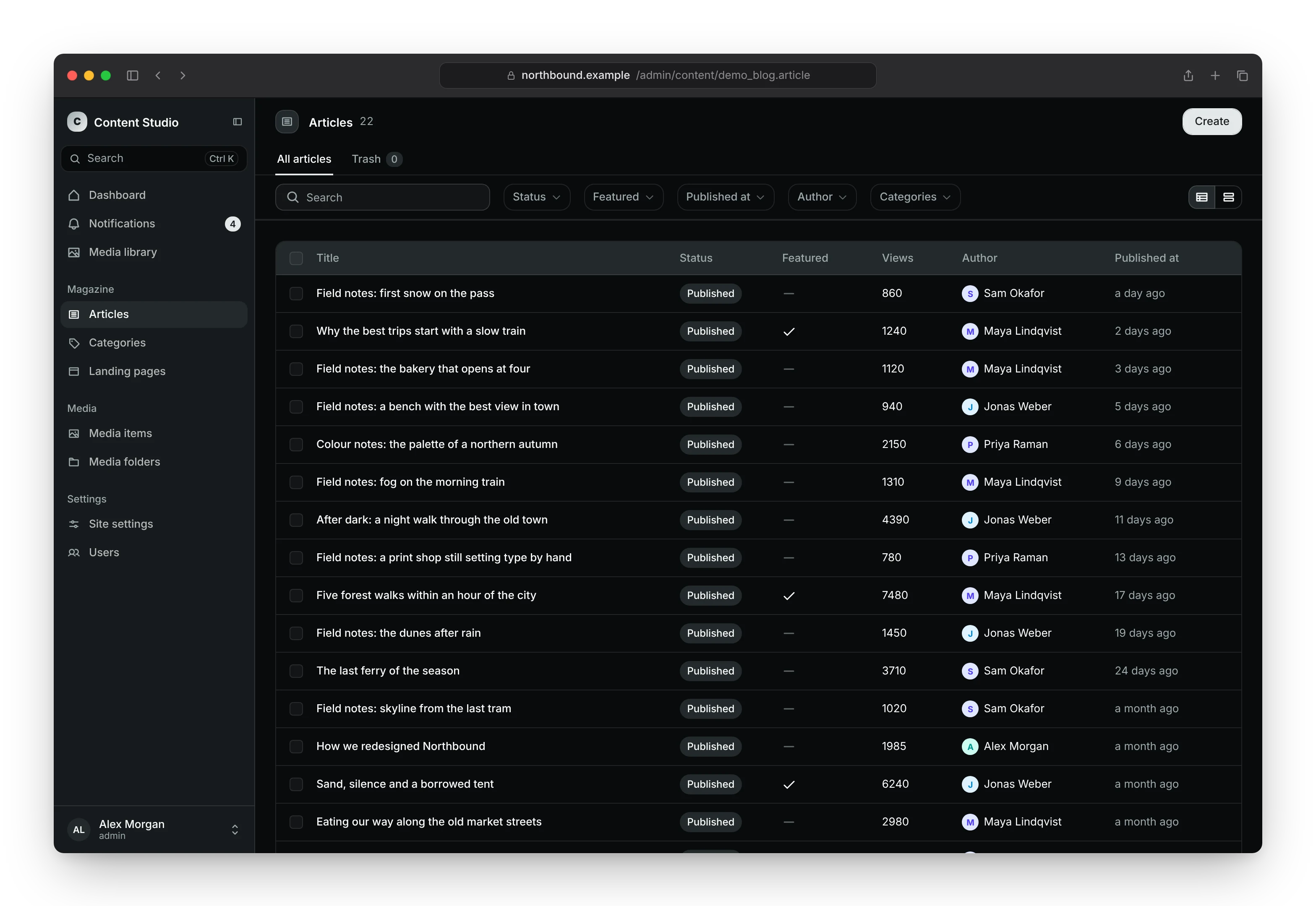
# blog/admin.py
from content_studio import register
from content_studio.admin import ModelStudio

from .models import Article


@register(Article)
class ArticleStudio(ModelStudio):
    table_display = ["title", "status", "published_at"]
    list_views = ["table", "list"]
    list_item_display = {
        "title": "title",
        "description": "body",
        "meta": "get_status_display",
        "thumbnail": "cover",
    }
Table columns
table_display lists the table's columns: field names, or TableColumn
objects for a custom header, a format or a computed value.
# blog/admin.py
from content_studio import register
from content_studio.admin import ModelStudio
from content_studio.form import TableColumn
from content_studio.formats import NumberFormat

from .models import Article


@register(Article)
class ArticleStudio(ModelStudio):
    table_display = [
        "title",
        TableColumn(field="published_at", header="Published"),
        TableColumn(field="get_word_count", header="Words", format=NumberFormat),
    ]

    def get_word_count(self, obj, request):
        return len(obj.body.split())
A column's field is a model field or a method on the studio. A method
takes (obj, request) and returns a value its format can show: text for text
formats, a number for NumberFormat, an ISO 8601 string for the date and
time formats. Without a format, a method column shows text and a field
column uses its field type's format.
A column without a header uses the field's verbose name; a method column
without one has no header. Editors can only sort on columns backed by a model
field.
list_display, the classic Django admin's name for the table columns, also
works, so a studio ported from the classic Django admin keeps its columns.
System check content_studio.W010 asks you to rename it to table_display;
when both are set, table_display applies.
List items
list_item_display maps the parts of a list item to field or method names:
a prominent title, a muted description, a meta label on the right and a
thumbnail on the left.
The thumbnail is an image or file field, a media field or a method or
property that returns an image URL; in these examples, cover is an
ImageField on Article. A media field shows images only, using the site's
small thumbnail. Once one item on the page has a thumbnail, items
without one show a placeholder, so the titles stay aligned.
For items computed in code, override get_list_item_display instead:
# blog/admin.py
from content_studio import register
from content_studio.admin import ListItemDisplay, ModelStudio

from .models import Article


@register(Article)
class ArticleStudio(ModelStudio):
    list_views = ["table", "list"]

    def get_list_item_display(self, obj, request):
        return ListItemDisplay(
            title=obj.title,
            description=obj.author.get_full_name(),
            meta=obj.status,
            thumbnail=obj.cover.url if obj.cover else "",
        )
Model properties
The admin shows a model's @property only where the studio names it: as a
column in table_display, a field in edit_main or edit_sidebar, or an
entry in readonly_fields. A property you do not name is never computed
and never sent to the admin, so a property that holds a secret or runs a
query stays out of every list page and edit page.
# blog/admin.py
from content_studio import register
from content_studio.admin import ModelStudio

from .models import Article


@register(Article)
class ArticleStudio(ModelStudio):
    table_display = ["title", "word_count"]
Here word_count is a property on Article, shown as a table column. A
property named in list_item_display is computed for each item of the list
view.
Bulk actions
In the table view, editors select objects (the header checkbox selects the whole page) and run an action from the bar that appears. A selection belongs to one page: paging, filtering or sorting clears it.
The built-in delete action is available to editors with delete permission.
Add your own actions to the studio with @bulk_action; like the actions of
the classic Django admin, they receive the request and the selected objects
as a queryset:
# blog/admin.py
from content_studio import register
from content_studio.actions import bulk_action
from content_studio.admin import ModelStudio

from .models import Article


@register(Article)
class ArticleStudio(ModelStudio):
    @bulk_action(
        label="Publish",
        icon="ph-bold ph-paper-plane-tilt",
        confirm="Publish the selected articles?",
        allowed_permissions=["change"],
    )
    def publish(self, request, queryset):
        count = queryset.update(status=Article.Status.PUBLISHED)
        return f"Published {count} articles."
label: the action's name; by default, the method name.icon: an icon class, like the studio'sicon.confirm: a question to confirm before the action runs.allowed_permissions: the model permissions that allow the action; any one of them is enough. By default the action needs change permission. An empty list,[], lets everyone who can see the list run the action. The permissions are also checked on each selected object (for examplehas_change_permission(request, obj); with an empty list,has_view_permission(request, obj)): if any selected object fails, the action runs on none of them.
The return value is the message editors see: a number reports how many objects changed, a string is shown as it is.
The built-in actions record every object they change in its history. Your
own actions record nothing by themselves. To record a change, call
record_change for each object, with "created", "updated",
"deleted", "restored" or "reordered" and an optional message. Record a
deletion before you delete the object:
# blog/admin.py
from content_studio import register
from content_studio.actions import bulk_action
from content_studio.admin import ModelStudio
from content_studio.signals import record_change

from .models import Article


@register(Article)
class ArticleStudio(ModelStudio):
    @bulk_action(label="Publish", allowed_permissions=["change"])
    def publish(self, request, queryset):
        articles = list(queryset)
        queryset.update(status=Article.Status.PUBLISHED)

        for article in articles:
            record_change(request, article, "updated", "Published.")

        return len(articles)
The studio's actions attribute chooses which actions are offered:
actions = None                   # the default: delete, export and every @bulk_action
actions = []                     # no bulk actions
actions = ["publish", "delete"]  # exactly these, in this order
"export" names the built-in export, which is offered when the studio
exports its list.
System check content_studio.E007 reports unknown or duplicate names and
an action that would replace the built-in delete or export.
Soft delete and the trash
By default, deleting an object removes it from the database. To move
objects to a trash instead, set soft_delete to a nullable date or date and
time field on the model that marks an object as trashed:
# blog/admin.py
from content_studio import register
from content_studio.admin import ModelStudio

from .models import Article


@register(Article)
class ArticleStudio(ModelStudio):
    soft_delete = "removed_at"
With the option set:
- deleting fills in the field instead of removing the object, and the object disappears from the list page;
- the list page links to the model's trash, where editors restore objects (with change permission) or delete them for good (with delete permission);
- restoring an object is recorded in its history.
Any model with such a field works; the built-in SoftDeletableModel has one
called removed_at. System check content_studio.E008 reports a field that
is missing or of the wrong type.
Reordering
To let editors put objects in their own order, add a number field to the
model and name it in reorder_field. The list page then follows that
order, and every row gets a handle to drag it to another position:
# blog/models.py
from django.db import models


class Category(models.Model):
    name = models.CharField(max_length=50)
    position = models.PositiveIntegerField(default=0)

    def __str__(self):
        return self.name
# blog/admin.py
from content_studio import register
from content_studio.admin import ModelStudio

from .models import Category


@register(Category)
class CategoryStudio(ModelStudio):
    table_display = ["name"]
    reorder_field = "position"
With the option set:
- the table view and the list view show a drag handle on every row; editors drag rows with the pointer, or focus the handle and move the row with the keyboard (space to pick it up, the arrow keys to move it, space to drop it);
- each row's menu moves the object one step up or down, or to the top or the bottom of the list, also when that is on another page. A step up or down passes the neighboring object of the list as currently filtered;
- reordering needs change permission, and every move is recorded in the object's history;
- reordering is off while editors sort by a column or search, because then the list does not show the manual order. Filtering keeps it on.
A move does not call the model's save() method or send its signals. When
you add the field to existing rows, they can all start at 0: the first
move numbers the list. If you set ordering yourself, start it with the
reorder field; system check content_studio.W013 warns when it does not.
Reordering per group
When objects are ordered within a group, such as reviews per article, list
the fields that form the group in reorder_scope. Objects then move among
the objects that share those values:
# blog/admin.py
from content_studio import register
from content_studio.admin import ModelStudio

from .models import Review


@register(Review)
class ReviewStudio(ModelStudio):
    table_display = ["text", "article"]
    list_filter = ["article"]
    reorder_field = "position"
    reorder_scope = ["article"]
Filter the list by the group to see one order at a time. Inlines are always
ordered per parent, so an inline needs only reorder_field:
# blog/admin.py
from content_studio.admin import InlineModelStudio

from .models import Review


class ReviewInline(InlineModelStudio):
    model = Review
    table_display = ["text", "stars"]
    reorder_field = "position"
On a model with a tenant field, objects are ordered per tenant (see Multi-tenancy).
Your own ordering
The built-in reordering works with a number field. If your model keeps its
order some other way, such as with django-ordered-model, override
reorder on the studio. It receives the object and either after or
before: the object to place it next to. Name the field the list is sorted
by in reorder_field:
# blog/admin.py
from content_studio import register
from content_studio.admin import ModelStudio

from .models import Category


@register(Category)
class CategoryStudio(ModelStudio):
    reorder_field = "order"

    def reorder(self, request, obj, *, after=None, before=None):
        if after is not None:
            obj.below(after)
        else:
            obj.above(before)
Return False from reorder when nothing moved, so no change is recorded.
The built-in ManualOrderModel has an order_key field to use as the
reorder field, and its reorder() method numbers the order keys from 1
again. Set order_scope on the model to the fields that form a group, like
reorder_scope.
System check content_studio.E017 reports a reorder field that is missing
or, without your own reorder, not a number field, and reorder_scope
entries that are not model fields.
Exporting the list
To let editors download the list as a spreadsheet, list the columns to
export in export_fields. Like table_display, it takes field names,
__str__, methods on the studio and TableColumn objects for a custom
header:
# blog/admin.py
from content_studio import register
from content_studio.admin import ModelStudio
from content_studio.form import TableColumn

from .models import Article


@register(Article)
class ArticleStudio(ModelStudio):
    table_display = ["title", "status", "published_at"]
    list_filter = ["status"]
    search_fields = ["title"]
    export_fields = [
        "title",
        "status",
        "author",
        "published_at",
        TableColumn(field="word_count", header="Words"),
    ]

    def word_count(self, obj, request):
        return len(obj.body.split())
To export the table's columns instead, set allow_export = True and leave
export_fields out.
The list page then offers Export in its toolbar. It downloads every object that matches the current search and filters, on all pages, in the list's current order. In the trash, Export downloads the objects in the trash. The built-in Export bulk action, next to Delete, downloads only the selected objects.
Exports are CSV files. To offer Excel files (.xlsx) as well, install
Content Studio with the excel extra, which adds
openpyxl:
pip install "django-content-studio[excel]"
Each column's header is the field's verbose name, capitalized, or the
TableColumn header. The cells hold the values as the admin shows them:
- the label of a choice, such as
Published; - the name of a related object, and the names of many-to-many objects separated by commas;
- dates and times in ISO format, such as
2026-04-01T18:30:00+02:00, in the current time zone; YesorNofor booleans, and rich text without its markup.
In Excel files, numbers and dates are real numbers and dates, shown in ISO format.
Exporting needs view permission on the model. An export holds the objects
of the selected tenant only, with multi-tenancy, and
leaves out objects in the trash (except when exporting the trash) and the
fields in the studio's exclude. A value that a spreadsheet application
would read as a formula, because it starts with =, +, - or @, gets a
leading apostrophe so it stays text. Export is not available for
singletons.
To offer export in the toolbar only, leave "export" out of an explicit
actions list.
System check content_studio.E022 reports export_fields entries that do
not resolve, and content_studio.W015 options that have no effect.