🧱 Edit page layout
By default, the edit page shows the model's fields in the order they are
declared. Set edit_main and edit_sidebar on the studio to choose the
fields and lay them out, with the building blocks in content_studio.form.
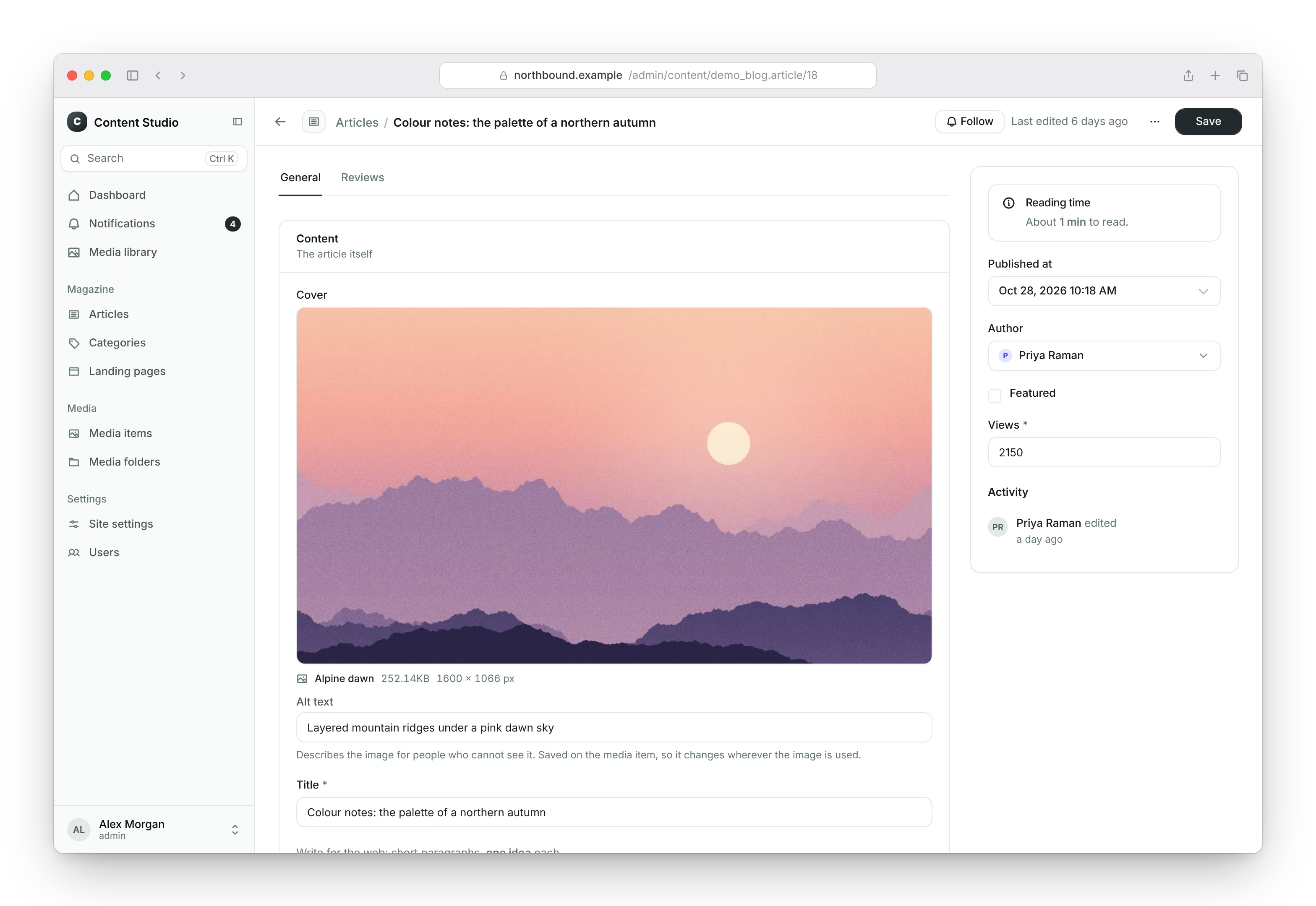
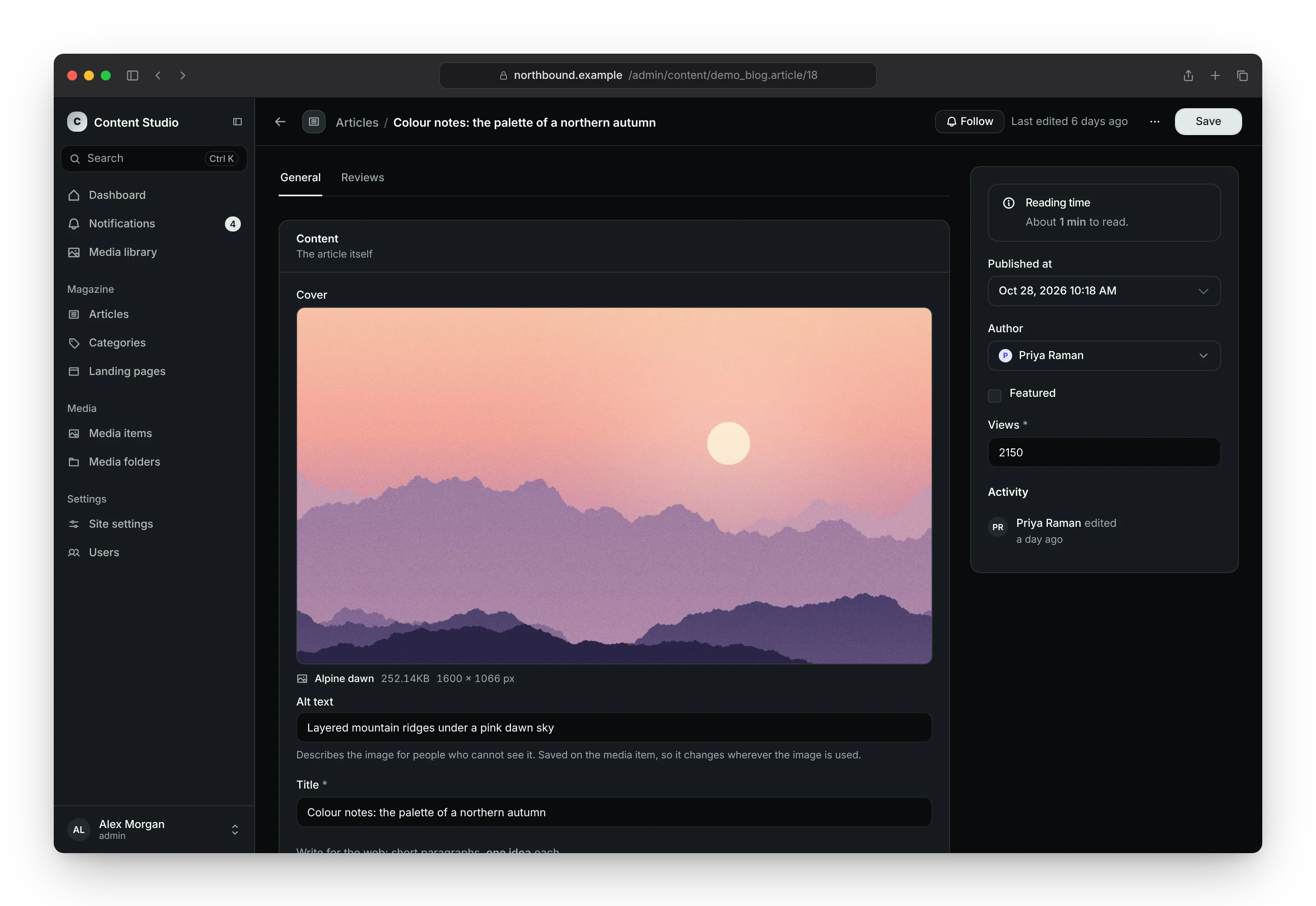
# blog/admin.py
from content_studio import register
from content_studio.admin import ModelStudio
from content_studio.form import Field, FormSet

from .models import Article


@register(Article)
class ArticleStudio(ModelStudio):
    edit_main = [
        FormSet(
            title="Content",
            description="The article itself",
            fields=[
                "title",
                Field("status", col_span=1),
                Field("body", col_span=3),
            ],
        ),
    ]
    edit_sidebar = ["published_at", "featured"]
Building blocks
Field(name, col_span=1, label=None, readonly=False, widget=None, when=None): one model field. A string is short forField(name).FieldLayout(fields=[...], columns=1): a group of fields shown incolumnscolumns.FormSet(title, description, fields, when=None): a titled block of fields, the main way to group the edit page.FormSetGroup(label, formsets=[...], when=None): a group of form sets.
when shows the item only under a condition; see
Conditional fields.
You do not have to wrap everything: a list of fields becomes a form set, and a list of form sets becomes a group.
Every required model field must be in edit_main or edit_sidebar. Like
the classic Django admin's form, the edit page only saves the fields it
shows, so a required field that is left out, also through exclude, makes
saving fail. System check
content_studio.W001 reports these fields. Fields with a default, nullable
or blank fields, and the fields Content Studio fills in itself (the audit
stamps and the tenant), are never required.
Sidebar
edit_sidebar works the same way and shows its fields in the narrow column
next to the main area. A field with readonly=True shows its value without
an input.
To edit one field with another widget, pass the widget class:
Field("body", widget=widgets.TextAreaWidget), or an instance with
options: Field("body", widget=widgets.TextAreaWidget(rows=12)). See
Widgets for the widgets you can use and their
options.
Page width
The main column of the edit page is at most 800px wide, so fields stay easy to read whether or not the studio has a sidebar. The sidebar sits next to it. The dialogs that inline objects open in fit their editor in the same way.
Some content needs more room, such as an inline table with many columns or
rows of four fields. Set edit_width = "wide" on the studio to let the main
column fill the page. On an inline studio, it widens the dialog the
inline's objects open in:
# blog/admin.py
from content_studio import register
from content_studio.admin import InlineModelStudio, ModelStudio

from .models import Article, Review


class ReviewInline(InlineModelStudio):
    model = Review
    table_display = ["text", "stars"]
    edit_width = "wide"


@register(Article)
class ArticleStudio(ModelStudio):
    inlines = [ReviewInline]
    edit_width = "wide"
edit_width is "default" or "wide". System check content_studio.E024
reports any other value.
Read-only fields
Like the classic Django admin, a studio can list fields in
readonly_fields. The edit page shows their values without an input, and
saving never changes them. readonly=True on a Field does the same for
that one place on the edit page.
To decide per editor or per object, override get_readonly_fields. It
receives the request and the object, which is None on the create form.
This keeps an article's title editable until the article is published:
# blog/admin.py
from content_studio import register
from content_studio.admin import ModelStudio

from .models import Article


@register(Article)
class ArticleStudio(ModelStudio):
    def get_readonly_fields(self, request, obj=None):
        if obj is not None and obj.status == Article.Status.PUBLISHED:
            return ["title"]

        return []
Inlines take readonly_fields and get_readonly_fields too. A required
field in readonly_fields can never be filled in, so creating objects fails;
system check content_studio.W002 reports it.
Conditional fields
when shows a field, a component, a form set or a tab only while the
form's values meet a condition. Write the condition as a Django
Q object
over the model's fields. The edit page applies it as the editor types:
# blog/admin.py
from django.db.models import Q
from django.db.models.functions import Now

from content_studio import register
from content_studio.admin import ModelStudio
from content_studio.form import Callout, Field, FormSet

from .models import Article


@register(Article)
class ArticleStudio(ModelStudio):
    edit_main = [
        FormSet(
            title="Content",
            fields=["title", "body", "status"],
        ),
        FormSet(
            title="Publishing",
            fields=[
                "published_at",
                Callout(
                    "Scheduled: the article goes live at its publication date.",
                    when=Q(published_at__gt=Now()),
                ),
            ],
            when=Q(status=Article.Status.PUBLISHED),
        ),
    ]
    edit_sidebar = [
        "featured",
        Field("views", when=Q(featured=True) | Q(views__gt=0)),
    ]
The Publishing form set shows once the status is Published, and its
callout while the publication date lies ahead. when takes the same
argument on every component, such as Text, Callout, Button or
SEOPreview, and on the components of edit_header. On a component you
subclass, you can set when as a class attribute.
Combine conditions with &, | and ~, like Q objects in a query.
They read the values of the model's own fields, with these lookups:
exact, iexact, in, isnull, gt, gte, lt, lte, range,
contains, icontains, startswith, istartswith, endswith and
iendswith. A value is one of:
- a literal: text, a number, a boolean,
None, a date, a date and time, a time, a model instance or a choice such asArticle.Status.PUBLISHED; - another field:
F("published_at"); - the current time:
Now(), optionally with an offset, such asNow() + timedelta(days=7). A date field compares with the current date in the site'sTIME_ZONE.
A foreign key compares by the related object's primary key:
Q(author=3). A many-to-many field matches
when any of its objects does, so Q(categories=2) holds for articles in
category 2, like in a query. An empty text field equals "", also in a
new object's form. Related fields (author__username) and transforms
(published_at__year) are not supported: the condition reads the form,
not the database. System check content_studio.E040 reports a condition
on a field the model does not have, or on an excluded or write-only field.
Saving hidden fields
A hidden field is not saved. Its stored value stays as it is and comes back when the field shows again, and a value an editor typed before hiding it is dropped. Content Studio decides this again when the object is saved, from the values the editor sends, so an editor cannot change a hidden field by other means. The same holds for the fields in a hidden form set or tab. A field placed twice is saved when one of its places shows.
A hidden field is not required. So a required model field that only shows
under a condition makes creating an object fail while it is hidden;
system check content_studio.W024 reports it. Give the field a default,
make it nullable or blank, or show it always.
Conditions decide what the edit page shows, not who may change what: an editor can show a field by changing the value it depends on. Use read-only fields and permissions to restrict editors.
Server-side conditions
For a rule a Q object cannot express, subclass Condition and decide in
Python. fields lists the form values check reads:
# blog/admin.py
from django.db.models import Q

from content_studio import register
from content_studio.admin import ModelStudio
from content_studio.form import Callout, Condition, FormSet

from .models import Article


class MeetsHouseStyle(Condition):
    fields = ["body"]

    def check(self, values, request):
        body = values["body"] or ""
        sentences = [s for s in body.split(".") if s.strip()]

        return all(len(sentence.split()) <= 25 for sentence in sentences)


@register(Article)
class ArticleStudio(ModelStudio):
    edit_main = [
        FormSet(
            title="Content",
            fields=[
                "title",
                "body",
                Callout(
                    "Keep sentences under 25 words.",
                    title="House style",
                    variant="warning",
                    when=~Q(body="") & ~MeetsHouseStyle(),
                ),
            ],
        ),
    ]
While the editor types, the admin sends the values of fields to the
server once the form rests, and shows or hides what the condition guards
when the answer arrives. Until then it stays hidden. check receives the
values as the form holds them: text, numbers and booleans as they are,
related objects as their primary key (a list for many-to-many fields),
dates and times as ISO 8601 strings, and None for empty fields. It runs
for every pause in typing, and again on save for conditions that guard
fields, so keep it fast and without side effects.
Prepopulated fields
Like the classic Django admin, prepopulated_fields fills in a field from
other fields while you create an object: typically a slug from the title.
Map the field to the fields it is made from:
# blog/models.py
from django.db import models


class Article(models.Model):
    title = models.CharField(max_length=200)
    slug = models.SlugField(max_length=200, unique=True)

    def __str__(self):
        return self.title
# blog/admin.py
from content_studio import register
from content_studio.admin import ModelStudio

from .models import Article


@register(Article)
class ArticleStudio(ModelStudio):
    prepopulated_fields = {"slug": ("title",)}
As you type the title, the slug follows it: accents are dropped, spaces
become hyphens and the result is cut to the field's max_length, as
Django's slugify does. Once you edit the slug yourself, it stops
following. Existing objects are never prepopulated, so a published URL does
not change when you rename an article.
To decide per editor, override get_prepopulated_fields(request, obj=None).
Inlines take prepopulated_fields too. A field that cannot hold text (a
DateTimeField, ForeignKey, OneToOneField or ManyToManyField), a
field in readonly_fields and names that are not fields are reported by
system check content_studio.E016.
A field that the model fills in itself when it is saved, and that is not
editable (editable=False), needs no prepopulated_fields: the edit page
shows its value read-only.
Unique fields
For every editable field with unique=True, such as the slug above, the
edit page checks while you type whether another object already uses the
value, and shows a warning under the field that names that object. The
check works with any model field and needs no configuration.
The warning does not stop you from saving: Django's uniqueness validation still decides, and reports the error when you save. Objects in the trash count, because they still hold the value. The warning names the other object only if you may view it.
On a model scoped to a tenant, only objects of the current tenant are compared.
Combinations of fields
The same check covers combinations of fields: Meta.unique_together and
every UniqueConstraint in Meta.constraints with more than one field.
When the combination of values in the form matches another object, the
warning shows under the field of the combination you edited last and names
the other fields. Before you edit any of them, it shows under the
combination's last field on the form.
A review is a fragment of blog/models.py, next to the Article model
above: each author may publish one review per article.
# blog/models.py
class Review(models.Model):
    article = models.ForeignKey(Article, on_delete=models.CASCADE)
    author = models.CharField(max_length=100)
    text = models.TextField()
    published = models.BooleanField(default=False)

    class Meta:
        constraints = [
            models.UniqueConstraint(
                fields=["article", "author"],
                condition=models.Q(published=True),
                name="one_published_review_per_author",
            ),
        ]

    def __str__(self):
        return f"{self.author} on {self.article}"
The edit page warns when the author already has a published review of the
same article, and only while the review you are editing is marked as
published: the constraint's condition applies to both reviews. A field of
the combination that is not on the form takes the value stored on the object
you are editing; a new object is only checked when every field of the
combination is on the form. A field of the condition that is not on the
form takes the stored value, or on a new object its default.
The check only reports what the database would reject:
- Empty values in the combination never clash. The exception is a null
value under a constraint with
nulls_distinct=False, on a database that supports it (PostgreSQL 15 or later). - The tenant field is left out of the combination, because only objects
of the current tenant are compared. A
UniqueConstrainton a field and the tenant field makes the field unique per tenant, and the warning covers it. - Functional constraints (expressions such as
Lower("title")) and deferrable constraints are not checked. Saving still reports their conflicts.
Components
Besides fields, the edit page can show components: text, links, buttons that run your code, and the object's activity log.
# blog/admin.py
from content_studio import register
from content_studio.admin import ModelStudio
from content_studio.form import ActivityLog, ButtonLink

from .models import Article


class ViewOnSiteButton(ButtonLink):
    label = "View on site"
    icon = "ph-bold ph-arrow-square-out"

    def get_url(self, obj, request):
        return obj.get_absolute_url()


@register(Article)
class ArticleStudio(ModelStudio):
    edit_sidebar = ["published_at", "author", ViewOnSiteButton(), ActivityLog()]
Link: a text link that opens the URLget_url(obj, request)returns.ButtonLink: the same as a button, with an optionalicon. Setcopy = Trueto add a button that copies the URL.Button: a button that runs your code on the object; see below.ActivityLog: the changes made to the object, newest first, under the title "Activity" or thetitleyou pass.Title,Subtitle,TextandCallout: text for the editor to read, such as headings and instructions; see below.SEOPreview: how the object would show in a search result, as the editor types; see SEO preview.
Only these components are supported; other component types are not. Links and buttons appear once the object is saved.
Text
The text components show information on the edit page; they are not
inputs. Place them in edit_main, edit_sidebar or the fields of a
FormSet, between the fields they describe:
# blog/admin.py
from content_studio import register
from content_studio.admin import ModelStudio
from content_studio.form import Callout, FormSet, Subtitle, Text, Title

from .models import Article


@register(Article)
class ArticleStudio(ModelStudio):
    edit_main = [
        FormSet(
            fields=[
                Title("Article"),
                Text("Write for the web: short paragraphs, **one idea** each."),
                "title",
                "body",
                Subtitle("Publishing"),
                "status",
            ]
        )
    ]
    edit_sidebar = [
        Callout(
            "Published articles change on the site as soon as you save.",
            title="Heads up",
            variant="warning",
        ),
        "published_at",
        "author",
    ]
Title: a heading, in plain text.Subtitle: a smaller heading, in plain text.Text: a paragraph in Markdown: bold, italic, links, lists and paragraphs. HTML in the text is not rendered, and links open in a new tab.Callout: Markdown text in a highlighted box, with an optionaltitle. Thevariantsets its color and icon:"info"(the default),"success","warning"or"danger". Pass anicon, such as"ph-bold ph-lightbulb", to use another Phosphor icon.
To show text that depends on the object, subclass the component and
override get_text(obj, request). It runs when the editor opens a saved
object, so text computed this way does not appear on the create form:
# blog/admin.py
from content_studio import register
from content_studio.admin import ModelStudio
from content_studio.form import Callout

from .models import Article


class ReadingTime(Callout):
    title = "Reading time"

    def get_text(self, obj, request):
        minutes = max(1, len(obj.body.split()) // 200)
        return f"About **{minutes} min** to read."


@register(Article)
class ArticleStudio(ModelStudio):
    edit_sidebar = [ReadingTime(), "published_at", "author"]
The text is computed again after the editor saves. Text components are not
allowed in a FieldLayout or in edit_header; system check
content_studio.E020 reports one in the header.
Two text components with the same text and type get the same ID. To show
the same text twice, pass component_id with a UUID of your own to one of
them.
SEO preview
SEOPreview shows a search-result snippet of the object being edited: the
value of title_field as the heading, the value of description_field
under it, and the page's URL above them. It follows the form as the editor
types, also on the create form. A title over about 60 characters and a
description over about 160 are cut off the way search engines cut them,
with a note under the snippet.
# blog/admin.py
from content_studio import register
from content_studio.admin import ModelStudio
from content_studio.form import FormSet, SEOPreview

from .models import Article


@register(Article)
class ArticleStudio(ModelStudio):
    prepopulated_fields = {"slug": ["title"]}
    edit_main = [
        FormSet(
            title="Search",
            fields=[
                "slug",
                "meta_description",
                SEOPreview(
                    title_field="title",
                    description_field="meta_description",
                    base_url="https://example.com/blog/",
                    path_field="slug",
                    site_name="Example",
                ),
            ],
        ),
    ]
title_field: the field with the page's title. Required.description_field: the field with the description; HTML in it shows as text. Without it, the snippet has no description.base_urlandpath_field: the page's URL isbase_urljoined with the value ofpath_field, a slug or a path. Without them, the snippet has no URL.site_name: the site's name, shown above the URL.
Like the text components, it goes in edit_main, edit_sidebar or a
FormSet, not in edit_header. The fields can also be set as class
attributes of a subclass. System check content_studio.E036 reports a
field the model does not have.
Buttons
A Button runs its handle(obj, request) method for the object being
edited. What it returns is shown to the editor: a string as a notification,
or a ButtonResult with a message and a value. The value appears once
in a dialog with a copy button, for something the editor must copy, such as
a generated key.
# blog/admin.py
from content_studio import register
from content_studio.admin import ModelStudio
from content_studio.form import ActivityLog, Button
from content_studio.signals import record_change

from .models import Article


class PublishButton(Button):
    label = "Publish"
    icon = "ph-bold ph-paper-plane-tilt"
    confirm = "Publish this article?"
    allowed_permissions = ["change"]

    def is_visible(self, obj, request):
        return obj.status != Article.Status.PUBLISHED

    def handle(self, obj, request):
        obj.status = Article.Status.PUBLISHED
        obj.save(update_fields=["status"])
        record_change(request, obj, "updated", "Published.")
        return "Published."


@register(Article)
class ArticleStudio(ModelStudio):
    edit_sidebar = ["published_at", "author", PublishButton(), ActivityLog()]
labelandicon: the button's text and an icon class, like the studio'sicon.confirm: a question to confirm before the button runs.destructive: shows the button in the style for changes that cannot be undone.allowed_permissions: the studio permissions that allow the button, such as["change"], checked for the object; any one of them is enough. By default the button needs change permission. An empty list,[], lets everyone who can view the object use the button.is_visible(obj, request): hide the button for some objects, such as articles that are already published.
The button checks the permissions and is_visible again when it runs. After
it runs, the edit page shows the object's new values and loads its inlines
again. Unsaved changes on the edit page are kept: the new values then appear
after you save or reload. Record the changes your button makes with
record_change, so they appear in the object's history.
The header
Components in edit_header appear in the edit page's header, next to the
save button. Use it for buttons that act on the whole object:
# blog/admin.py
from content_studio import register
from content_studio.admin import ModelStudio
from content_studio.form import Button

from .models import Article


class PublishButton(Button):
    label = "Publish"
    allowed_permissions = ["change"]

    def handle(self, obj, request):
        obj.status = Article.Status.PUBLISHED
        obj.save(update_fields=["status"])
        return "Published."


@register(Article)
class ArticleStudio(ModelStudio):
    edit_header = [PublishButton()]
An inline studio takes
edit_header too: its components appear in the header of the dialog in
which an editor opens one of the inline's objects. That dialog shows the
fields and components of the inline model's own studio, when it has one, and
its links and buttons work there too. The inline studio's permissions decide
who may use them. edit_header only takes components, and no text
components; system check content_studio.E020 reports anything else.
After creating an object
To tell editors something once they create an object, return it from the
studio's get_created_result(request, obj): a message, or a ButtonResult
whose value appears once in a dialog with a copy button. This suits a value
the admin never shows again, such as a generated key:
# blog/admin.py
from content_studio import register
from content_studio.admin import ModelStudio
from content_studio.form import ButtonResult

from .models import Article


@register(Article)
class ArticleStudio(ModelStudio):
    def get_created_result(self, request, obj):
        return ButtonResult(
            message="The article was created.",
            value=obj.get_absolute_url(),
        )
Two components of the same class with the same label need an explicit
component_id (a UUID) to tell them apart; manage.py check reports
duplicates.
Object history
The ActivityLog component shows an object's history on its edit page: every
addition, change and deletion, newest first. Add it to the sidebar or to any
form set:
# blog/admin.py
from content_studio import register
from content_studio.admin import ModelStudio
from content_studio.form import ActivityLog, FormSet

from .models import Article


@register(Article)
class ArticleStudio(ModelStudio):
    edit_sidebar = [
        FormSet(fields=["published_at", "author"]),
        FormSet(fields=[ActivityLog(title="History")]),
    ]
The title is "Activity" unless you pass one. The history appears on the edit
page of saved objects only, for editors who may view the object. Each
FormSet in the sidebar is its own card, so the history above gets a card of
its own.