🔔 Notifications
Notifications tell editors in the admin what other editors changed. An editor hears about changes to the objects they created, to every object of a model they subscribed to, and to the objects they follow. Your project can add events of its own, such as an article submitted for review, and send them from Python.
Notifications are an optional app. They live in the admin, and an optional email digest sends editors the ones they leave unread.
Set up notifications
-
Add the notifications app to your project:
# mysite/settings.pyINSTALLED_APPS = [# ..."content_studio","content_studio.notifications",] -
Run
manage.py migrateto create its tables. -
Schedule the prune command, which removes old notifications and the follows of objects that no longer exist. For example, once a night from cron:
0 3 * * * /srv/mysite/venv/bin/python /srv/mysite/manage.py content_studio_prune_notifications
The main menu then shows Notifications under the dashboard, and every editor gets a notification settings page.
What editors see
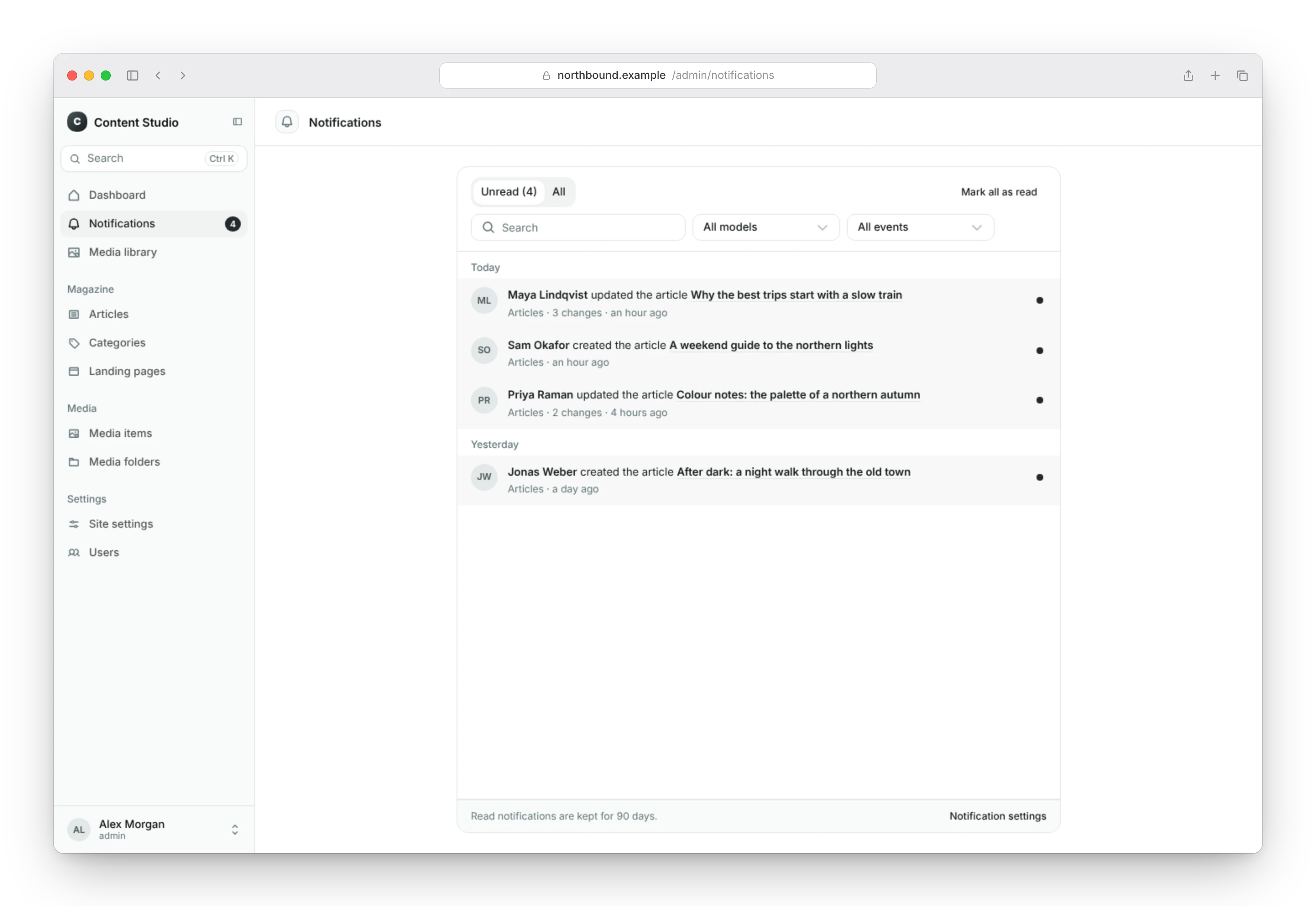
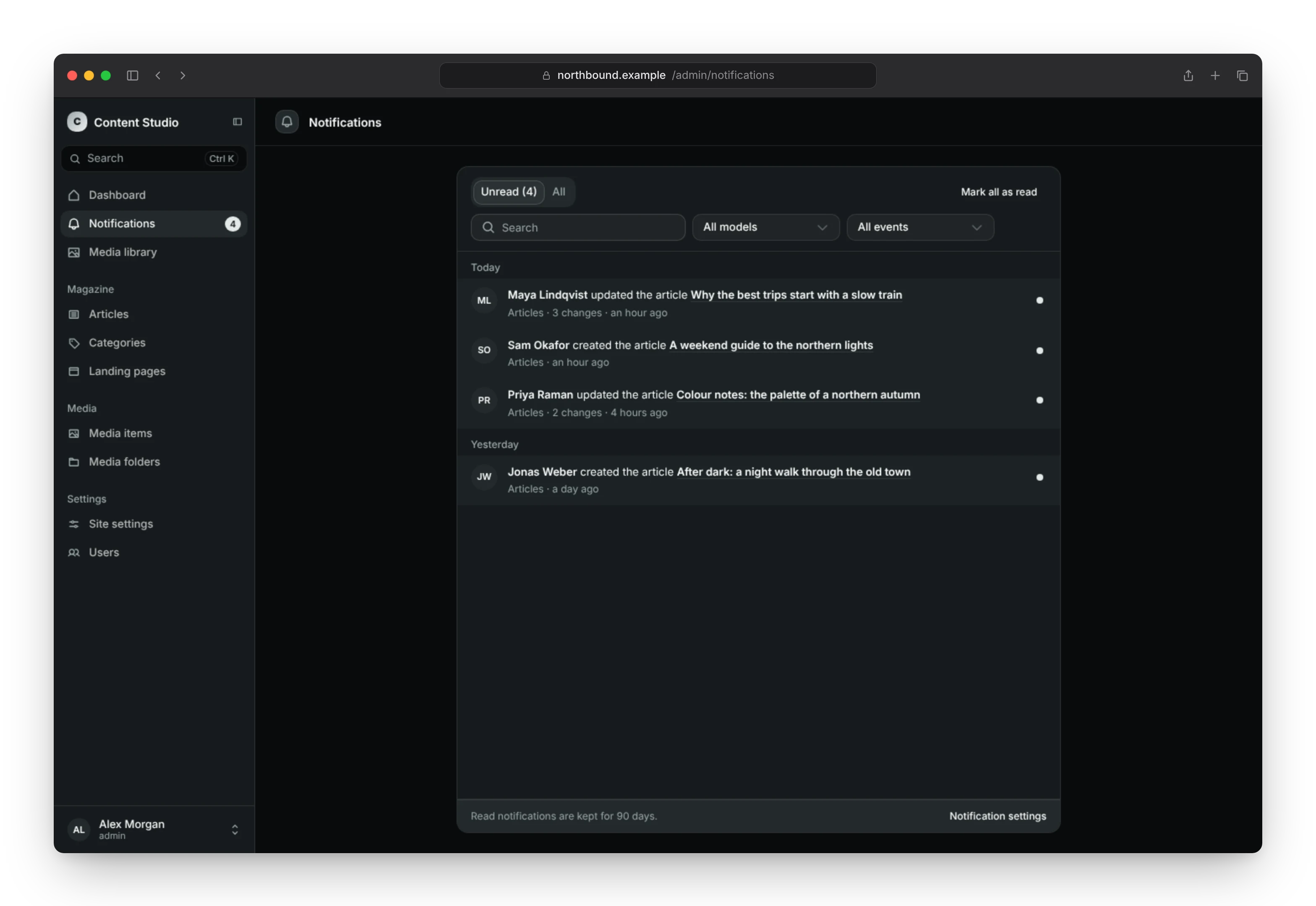
- The main menu item shows the number of unread notifications. It opens the list, with an Unread and an All tab. On narrow screens it opens the list as a page.
- The notifications page, reached with See all under the list, shows every notification with the same tabs, and filters them by model and by event. Its search finds notifications by the object's name, the text, the objects a summary names and who made the change; every word must match. The filters are kept in the page's address, so a filtered page can be bookmarked or shared.
- The list names who did what to which object, and links to the object while it exists; deleted objects are named but not linked. Opening a notification marks it as read. The dot beside an unread one marks it as read without opening it, and Mark all as read marks every unread one the editor has seen. Notifications that arrive while the list is open wait behind a button at the top, so the rows do not move under the pointer.
- Toasts announce new notifications in the corner of the admin. They never show the notifications that were there when the admin loaded, show at most three at a time and combine more into one. An editor turns them off on the settings page; the choice applies to that browser only.
- Follow, in the edit page's header, notifies the editor about every change to that object. On narrow screens it is in the more actions menu.
The admin asks for new notifications every 30 seconds while the browser tab is visible, and pauses while it is in the background. With several tabs of the admin open in one browser, one visible tab asks and shares the answer with the others, and marking a notification as read in one tab marks it in all of them.
Email digest
The digest emails each editor the notifications they left unread, in one email with links to the admin. A notification is mailed once, after it went unchanged and unread for an hour, so an editor working in the admin reads it there first. Editors turn the email off on their notification settings page; editors without an email address get none.
-
Set up Django's email for your project.
-
Turn the digest on, and tell Content Studio where the admin is, for the links:
# mysite/settings.pyCONTENT_STUDIO = {# ..."NOTIFICATION_EMAIL_DIGEST": True,"ADMIN_URL": "https://example.com/admin/",} -
Schedule the digest command, for example every hour from cron:
0 * * * * /srv/mysite/venv/bin/python /srv/mysite/manage.py content_studio_send_notification_digest
--delay sets how many minutes a notification stays unread and unchanged
before it is mailed, 60 by default. The emails are written in your
project's LANGUAGE_CODE, and show what the editor may see in the admin,
with the same permission checks as the list.
To change how the email looks, override the templates
content_studio/notifications/digest.txt and digest.html in your
project's templates. They get user, name (the editor's name), site_name,
count, items (each with text, detail and url, which is empty for
deleted objects), rest (how many more than the 20 shown), admin_url,
notifications_url and settings_url.
A dashboard widget
NotificationsWidget shows the editor's latest notifications on the
dashboard, unread ones marked, with the number of unread ones and a link to
all of them. It updates when a new notification arrives. limit sets how
many it shows, 5 by default and at most 20; title and description
replace its texts.
# mysite/studio.py
from content_studio.admin import ContentStudioSite
from content_studio.dashboard import Dashboard
from content_studio.notifications.dashboard import NotificationsWidget


class BlogStudioSite(ContentStudioSite):
    dashboard = Dashboard(widgets=[NotificationsWidget(limit=8)])


admin_site = BlogStudioSite()
System check content_studio.W021 reports the widget on a site without the
notifications app.
What notifies whom
Without a choice of their own, editors are notified when another editor updates, deletes or restores an object they created. Who created an object comes from the classic Django admin's activity log, so this works for every model created in the admin, with or without a creator field.
On their notification settings page, editors choose per model:
- Which ones: every object of the model, or the objects they created.
- Which changes: created, updated, deleted and restored. Creating an object never notifies its creator, so with "Created by me" there is no created column. A singleton only has updated.
Every change on the page is saved as it is made. Followed objects notify the editor about every change, whatever the settings say, and are listed on the same page with a button to stop following them.
Change the defaults
Override get_default_subscriptions(user) on your site to change what an
editor gets before they choose, for example per group. It returns a dict: a
model maps to the changes and whose objects they are about, a registered
event's key to True or False.
# mysite/studio.py
from content_studio.admin import ContentStudioSite

from blog.models import Article


class BlogStudioSite(ContentStudioSite):
    def get_default_subscriptions(self, user):
        if any(group.name == "Editors" for group in user.groups.all()):
            return {
                Article: {"events": ["created", "updated"], "scope": "all"},
                "blog.article_submitted": True,
            }

        return {}


admin_site = BlogStudioSite()
events: any of"created","updated","deleted"and"restored".scope:"all"for every object of the model, or"mine"(the default) for the objects the editor created.
Models and events you leave out keep the defaults above. An editor's own choice always wins, and the settings page shows the defaults until they make one, so changing the method changes what every editor without a choice of their own gets. Required events stay on.
The method is called for every active staff user when a change notifies anyone, with the user's groups loaded: keep it to what it can read from the user, as in the example, without queries of its own per user.
Rules that always hold
Some rules hold whatever editors choose:
- Nobody is notified about their own changes.
- Editors only see notifications about objects they may view (see Access control).
- Repeated changes do not flood the list: a bulk action is one notification, and further changes to an object update its unread notification.
- With multi-tenancy, notifications and settings are kept per tenant.
Leave a model out
Set notifications = False on a studio to leave its model out: its changes
notify nobody, it is not on the settings page and its edit page has no
Follow button.
# blog/admin.py
from content_studio import register
from content_studio.admin import ModelStudio

from .models import Review


@register(Review)
class ReviewStudio(ModelStudio):
    notifications = False
Add events of your own
Register an event with register_event, in your app's ready(), so it
appears on the settings page. Then send it with notify.
# blog/apps.py
from django.apps import AppConfig
from django.utils.translation import gettext_lazy as _


class BlogConfig(AppConfig):
    name = "blog"

    def ready(self):
        from content_studio.notifications import register_event

        register_event(
            "blog.article_submitted",
            _("Article submitted for review"),
            description=_("An author asks for a review before publishing."),
        )
# blog/views.py
from django.contrib.auth.models import Group
from django.utils.translation import gettext_lazy as _

from content_studio.notifications import notify


def submit_for_review(request, article):
    notify(
        "blog.article_submitted",
        title=_("%(title)s is ready for review"),
        params={"title": article.title},
        target=article,
        actor=request.user,
        recipients=Group.objects.filter(name="Editors"),
    )
register_event takes:
key: lowercase dotted words, like"blog.article_submitted". Keys that start withcontent.are taken by content changes.labelanddescription: shown on the settings page.level:"info"(the default),"success","warning"or"error", which sets the icon in the list and the toast.default: whether editors get the event until they turn it off (the default,True) or only after they turn it on.required: delivered to everyone, without a switch to turn it off. The settings page shows it as required.
notify takes:
titleandbody: the text, translated when the notification is read, in the reader's language, and filled in withparams. Usegettext_lazy, as in the example.target: the object it is about. The notification then links to its edit page, and only editors who may view the object are notified. Without a target,urlsets where it leads: a path in the admin or a full URL.recipients: users, groups, or querysets of either. Without recipients, the event goes to the editors who have it on: everyone who did not turn it off for a default event, everyone for a required one.actor: who did it. The actor is never notified.key: an unread notification of the same event with the same key is bumped instead of repeated, like "3 comments await moderation".level: overrides the event's level.
Only active staff users are notified. Called inside a transaction, notify
writes the notifications once the transaction commits, and not at all when
it rolls back.
Built-in events
With the webhooks app installed, Webhook delivery failed notifies the editors who may change a webhook when one of its deliveries fails after the last attempt. It is on by default, and editors turn it off on the settings page. A webhook that keeps failing bumps its unread notification rather than adding one per delivery.
Retention
content_studio_prune_notifications removes read notifications older than
NOTIFICATION_RETENTION days, 90
by default, and unread ones older than
NOTIFICATION_UNREAD_RETENTION
days, which keeps them by default. The list's footer tells editors how long
read notifications are kept.